


Use Momentus with Zoom
Connect your Zoom account to record selected meetings for coaching, using botless capture or a visible meeting bot.
Connect your
Zoom account
- During Momentus setup, connect the calendar you use for meetings.
- In the Authorize Zoom step, select Authorize Zoom.
- Sign in to the Zoom account you use for meetings.
- Review the requested permissions, scrolling through the window as needed. Check Allow this app to use my shared access permissions, then select Allow.
SETUP
Step 2 of 4
2
Authorize Zoom
Optional
Enable capture without a bot tile and help recording bots join meetings that require Zoom sign-in.
Authorize Zoom
Skip for now
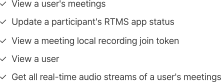
✓ View a user's meetings
✓ Update a participant's RTMS app status
✓ View a meeting local recording join token
✓ View a user
✓ Get all real-time audio streams of a user's meetings
Allow this app to use my shared access permissions. Learn more

By giving this app access, it will be able to take actions on your behalf for other users, based on your permissions and what the app can view or manage.
By clicking Allow, you give permission to this app to use your information in accordance with their Terms and Privacy Policy. You can remove this app at any time in My apps.


Switch account
PR
Momentus would like permission to:
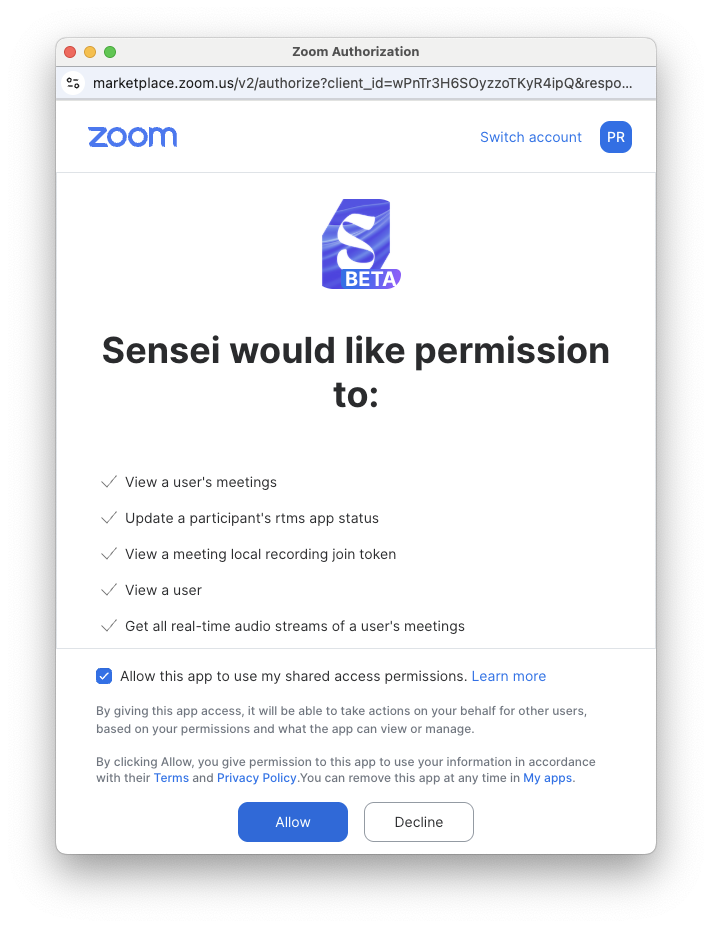
Allow
Decline
Optional Permissions
Control where this app starts

Meetings users own
Meetings users attend
Host approval required
Internally hosted meetings
Externally hosted meetings
Leave optional boxes unchecked































Authorize, 1 of 3

 Momentus
Record your
scheduled meetings
Before the meeting
Check that the meeting appears on your Momentus dashboard, includes a Zoom link, and is marked Record.
During the meeting
Join the meeting using your connected Zoom account.
- Botless Capture: Momentus records without a bot occupying a participant tile. Zoom displays a badge showing that an app is recording.
- Meeting bot: A visible bot joins the call to record. A bot may also be used if botless capture is unavailable.
After the meeting
Not every recorded meeting produces a coaching report. When a report is available, you can open it in Momentus and view the recording within the report.
Manage your Zoom connection
In Momentus, open Settings → Preferences → Zoom account.
- Connect or reconnect: Select Connect and authorize access. Check your recording preferences before your next meeting.
- Change the recording method: Turn Botless Capture on or off.
- Disconnect: Select Disconnect and confirm.
Remove the integration through Zoom
You can also remove the integration through the Zoom website:
- Sign in to the Zoom App Marketplace.
- Open Manage → Added Apps and locate Momentus.
- Click the three-dot menu beside Momentus, select Remove, and follow the prompts.
Disconnecting Zoom does not delete your Momentus account or saved recordings and reports. To stop an ongoing recording, use the meeting controls. See our Privacy Policy for retention and deletion details.

Having trouble?
Can’t connect?
In Momentus, open Settings → Preferences and check that your calendar is connected. In Zoom account, select Connect and sign in to the intended Zoom account. Your organization may require administrator approval.
Meeting isn’t recording?
Check that the meeting appears on your Momentus dashboard, includes a Zoom link, and is marked Record.
Depending on the meeting settings, the host may need to admit the Momentus bot or approve recording. Ask the host to check for a waiting-room entry or an approval prompt in Zoom.
Botless capture starting in meetings you haven’t selected?
You may have enabled Zoom’s optional auto-start settings. To turn them off:
- Open your Zoom Apps settings and sign in if prompted.
- Under Meeting → Apps that access content in meetings, locate Momentus.
- Click the edit pencil icon beside Momentus.
- Uncheck all four auto-start boxes.
Momentus can still request recording for meetings you select.
Email support@moment.us for help. Visit the Support page for our hours and response expectations.